
• myFAV.ES
  • Help Center
  • Tutorials
  • Extensions
  • Blogs


  • Logos
  • Logo Requests
  • Themes
  • Backgrounds
  • Forums
  • Contact

Error message

Warning: count(): Parameter must be an array or an object that implements Countable in antispam_user_load() (line 1555 of /home/ul/public_html/userlogos/sites/all/modules/antispam/antispam.module).
Home » Forums » 09182009 » Web 2.0 style fills in Fireworks CS4

Web 2.0 style fills in Fireworks CS4

spaljeni —Fri, 09/18/2009 - 14:08

First of all I have to say whay I love working with fireworks.
The main reason is because it is able to work with vector graphics (or paths as they're called in Fireworks)
Here I will explain how to create web 2.0 style fills manually (you can download style libraries from various sites and I have used them in the past, but they are uneditable) and fairly easy.

Let us start. First of all you have to trace out your logo from a bitmap or write down some text. right click on it and select "Convert to paths"

Here is my starting image

Of course each one of the letters is essentially a path

Next up select each path individually and in the live effects section select and add a "Photoshop Live Effect".
Select stroke, set the color to the fill color of each path and the following settings:
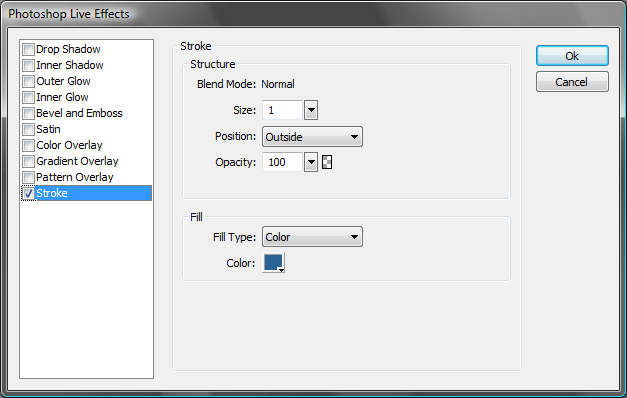
This adds an outline to the objects.

Then select all paths, duplicate them, remove the photoshop live effect from the newly created ones and draw a rechtangle in front of them.

You can use other shapes as well.

With all paths and the rechtangle selected, open up the path panel and select "punch paths"
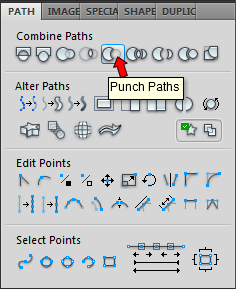
Select each of the newly created objects individually and create a gradient fill. The top color being white, and the bottom being the fill color of the original path.
You should get this:

Next select each of the original paths, set the fill to gradient.
First match the two colors
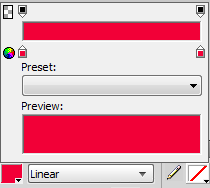
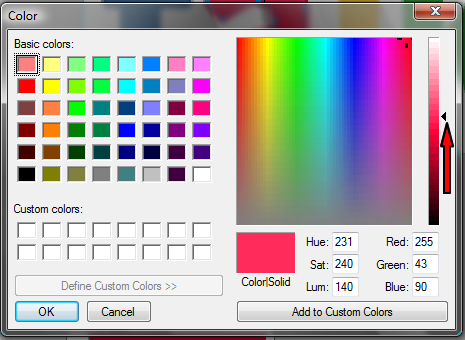
Then open up the system color picker on the first (upper) color (outlined in red)
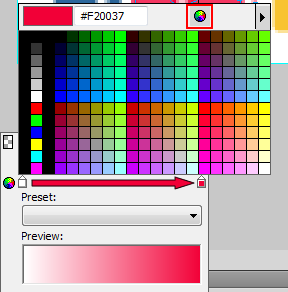
In the system color picker use the slider to select a lighter shade of the same color
The result should look like this:

You can try out different shades until you are happy with the result.

Now select the top objects, set their oppacity to around 40-50% (or play around until you are happy with the result)

Next up select ALL the objects on the canvas, duplicate them, group them, right click and select "Flatten selection" (this is a good practice when using Photoshop Live Effects, of any of the Live effects because when flipping Fireworks tends to keep effects settings as they are so shadows, glows, etc may not be flipped), flip the image and proceed to creating a reflection.

I also like to set the oppacity of the image to 80-90% before adding "Auto Vector Mask"

One trick for easy export to transparent PNG:
In the optimize panel set the image type to "PNG32", set the canvas color to transparent and press "CTRL+SHIFT+R" to bring up the "export" dialog.

And here is the finished product:

Have fun!

  • Graphics Related Tutorials
‹ Reflections Tutorial - Fireworks up Paint Shop Pro ›
  • Printer-friendly version
  • Log in or register to post comments or vote.
  • 0
  • 0 votes

Search logos

Search site

Navigation

  • Blogs
  • Forums
  • Online users
  • Recent content

User login

  • Create new account
  • Request new password
 
  • Changelog
  • Latest releases
  • Important links
 
 
  • Changelog
  • Latest releases
  • Important links
  • Support Forum
 

Top Rated

  • google.com
  • youtube.com
  • fast dial folder
  • wikipedia.org
  • Firefox Black
  • fd folders, folders, folder
  • generic gaming logos
  • mail.google.com, gmail.com, googlemail.com
  • Carbon Fiber
  • iphone app style icon template
more

Recent Polls

  • What are you resolution of screen use
  • Which version of Fast Dial do you run?
  • How often do you visit Userlogos?
  • Which FD iPhone logo format do you find preferable
  • How many themes do you run in Fast Dial ?
more

Online users

There are currently 0 users online.
Active - 15 mins:
No registered users :(
  • Last 24 hours

Recent comments

  • Sexy Cat Costume for Feline Vibes
    by: DakotaHanton
    14 hours 37 min ago
  • IPTV ONLINE
    by: DakotaHanton
    1 day 14 hours ago
  • Visit the Beret Store for Handmade Collections
    by: Jordan64
    2 days 21 hours ago
  • When choosing a lab-grown
    by: Stewart44
    3 days 16 hours ago
  • Many students and
    by: Jordan64
    3 weeks 5 days ago
  • Choosing original sneakers is
    by: Aliyanna
    1 month 2 weeks ago
  • Finding a trusted Dentist in
    by: DakotaHanton
    1 month 2 weeks ago
  • How to Design a Perfect Gym Layout with Ganas
    by: DakotaHanton
    1 month 2 weeks ago
more

Recent topics

  • Get Started with the Zula Casino Promo Code!
  • Explore the Excitement of Top Social Casino Games! Looking for an entertaining way to enjoy gaming? Check out the top social cas
  • Unexpected Slot Discovery
  • Discover the Best Arabic Casinos
  • seo
  • Why Pips NYT Might Be Your Next Daily Brain Boost
  • Spot-Repair
  • Fleckenentfernung
more

Top contributors

User Total user points
Mafia_Penguin 912
Deva 552
gumanov 490
jumpordie 471
Karmody 457
macleod.mac 402
ingalls 354
spaljeni 310
zigzag 290
Rog 265
Sastre 256
famecky 160
x-b 152
danger83 147
1air2philou 143
more

2008-2017 userlogos.org. All logos/images belong to their respective owners. Contact administrator.

  • Logos
  • Logo Requests
  • Themes
  • Backgrounds
  • Forums
  • Contact